

Picking the right platform can feel overwhelming, and that’s exactly why this website builder guide exists. Whether you’re launching a small business site, a portfolio, or a blog, the tool you choose shapes how easy your site is to build and how far it can grow. This guide breaks down the top platforms, walks through setup, and helps you decide what fits your budget and skill level.
Key Takeaways
- A good website builder should match your skill level, budget, and long-term goals, not just today’s needs.
- WordPress offers the most flexibility, while Wix and Squarespace are easier for total beginners.
- Before you pick a platform, decide whether you need e-commerce, a blog, or just a simple landing page.
- Most beginner-friendly builders let you launch a working site in under an hour.
- Plan for growth, since switching platforms later can cost you time, traffic, and design work.
Website Builder Guide: How to Pick the Right Platform
The short answer: choose a website builder based on how much control you want over design, how comfortable you are with technology, and what your site actually needs to do. This website builder guide walks through the major platforms so you can match real features to your goals instead of chasing the flashiest templates.
What Matters Most When Choosing
Three things drive most decisions: ease of use, design flexibility, and room to grow. A hobby blog has different needs than a small business site that needs online booking or a store. Start by listing what your site must do in the first six months, then match that list to a platform instead of picking based on looks alone.
Website Builder Reviews: How the Top Platforms Stack Up
These website builder reviews focus on real strengths and trade-offs, not marketing claims. Every platform below can produce a professional site. The differences show up in how much time you’ll spend learning the tool and how far you can customize things later.
Wix
Wix uses a drag-and-drop editor that’s friendly to first-time site owners. You can place elements almost anywhere on the page, which is great for creative layouts but can also make pages feel cluttered if you’re not careful with spacing.
Squarespace
Squarespace leans on polished, designer-made templates. It’s a strong pick for portfolios, photographers, and brands that want a clean look without a lot of tweaking. The trade-off is less layout freedom than Wix offers.
WordPress
WordPress powers a huge share of the web because it’s open and extendable. Thousands of themes and plugins mean you can build almost anything, from a simple blog to a full online store, but it has a steeper learning curve than the other options here.
Webflow
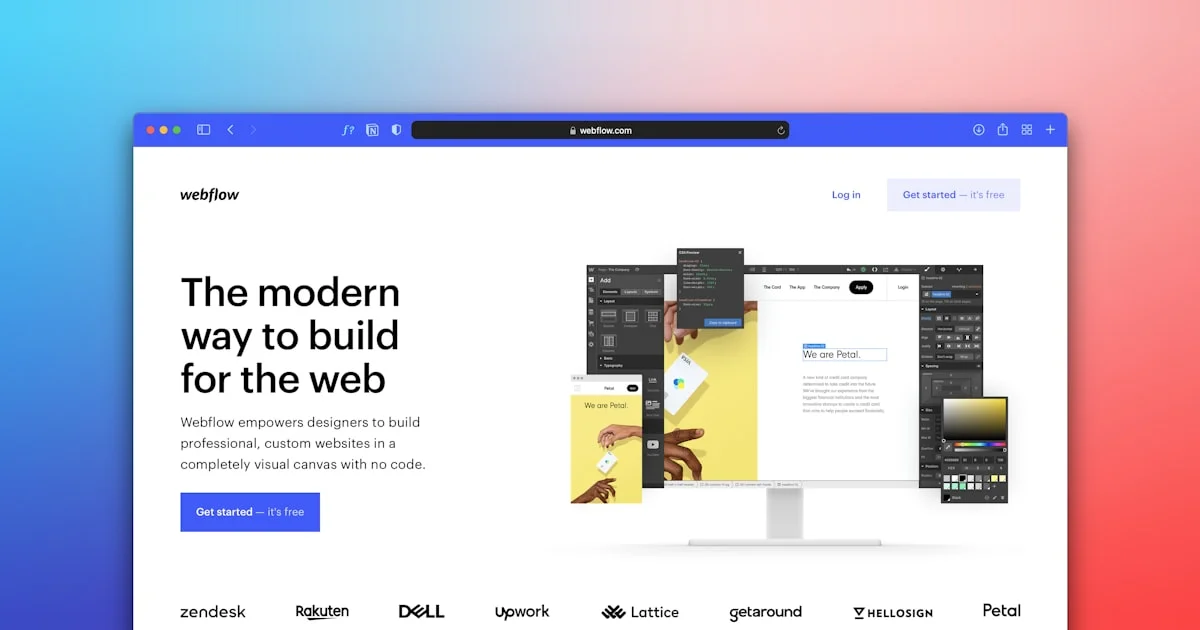
Webflow sits between a drag-and-drop builder and a coding tool. It gives designers precise control over layout and animation without writing code, but that power comes with a longer setup process for beginners.
Quick takeaways from these reviews:
- Wix: best for beginners who want visual freedom.
- Squarespace: best for clean, design-forward sites.
- WordPress: best for long-term flexibility and content-heavy sites.
- Webflow: best for designers who want fine control over layout.
Website Builder Comparison: Matching Platforms to Your Project
A side-by-side website builder comparison makes the trade-offs easier to see at a glance. The table below looks at ease of use, flexibility, and who each platform suits best, rather than focusing on prices that change often and vary by plan.
| Platform | Best For | Ease of Use | Flexibility |
|---|---|---|---|
| Wix | Beginners, small businesses, portfolios | Very easy | Moderate |
| Squarespace | Design-focused brands, creatives | Easy | Moderate |
| WordPress | Blogs, content sites, growing businesses | Moderate learning curve | Very high |
| Webflow | Designers, custom layouts | Steeper learning curve | Very high |
If you want the fastest path to a live site, Wix or Squarespace usually win. If you expect your site to grow into something more complex, WordPress or Webflow give you more room to expand later without starting over.
Top Website Builder Setup: Getting Your Site Live
Once you’ve picked a platform, the top website builder setup process follows a similar pattern no matter which tool you use. Here’s how to go from a blank account to a published site.

The screen above shows a common early step: adding a plugin from the dashboard, which is part of getting core features like SEO tools and contact forms working.
- Choose a domain name that’s short, easy to spell, and matches your brand.
- Pick a template or theme that fits your content type, then swap in your own colors and fonts.
- Add your core pages: home, about, contact, and any service or product pages you need.
- Install must-have plugins or apps, such as contact forms, SEO tools, or booking widgets.
- Preview your site on mobile, since most visitors will land on your site from a phone first.
- Connect analytics so you can see what visitors do once the site is live.
- Publish, then test every link, form, and button one more time before sharing the site.
Common Mistakes to Avoid
Even a good platform can produce a weak site if a few basics get skipped. Watch for these common issues:
- Skipping mobile preview and launching a site that looks broken on phones.
- Using too many fonts or colors, which makes a site feel unprofessional.
- Ignoring page load speed, especially with large, unoptimized images.
- Ignoring SEO basics like page titles, descriptions, and image alt text.
- Forgetting to back up the site before making big design changes.
Pricing and Long-Term Value
Plans vary by platform and change often, so it’s smarter to think in terms of value than to chase the lowest sticker price. Ask what’s included at each tier, such as a custom domain, storage, support, and app or plugin access. A plan that looks cheap but blocks key features can cost you more time and frustration later. Free trials are a low-risk way to test an editor before you commit to a paid plan.
Also weigh switching costs. Moving a finished site from one builder to another later usually means rebuilding pages by hand and can cost you some SEO progress, so it pays to choose carefully now rather than fix it later.
Frequently Asked Questions
Here are quick answers to the questions people ask most before choosing a website builder.
Which website builder is best for beginners?
Wix and Squarespace are usually the easiest starting points. Both use visual editors that don’t require coding knowledge, so you can have a basic site live within a few hours.
Can I switch website builders later?
Yes, but it takes work. You’ll typically need to rebuild pages by hand and reconnect your domain, and you may lose some search rankings during the move. Choosing carefully now saves that hassle later.
Do I need coding skills to use a website builder?
No. Modern builders are designed for people with no coding background. If you want deeper customization, tools like WordPress and Webflow offer advanced options without requiring you to write code from scratch.
How long does it take to build a site?
A simple site can go live in a few hours with a beginner-friendly builder. More complex sites with e-commerce, custom design, or many pages can take days or weeks, depending on how much customization you want.
Conclusion
There’s no single best website builder, only the best fit for your goals, budget, and comfort with technology. Use the comparisons and setup steps above to narrow your options, then try a free trial before you commit. The right platform will make it easier to grow your site instead of holding you back.


1 Comment
Comments are closed.