

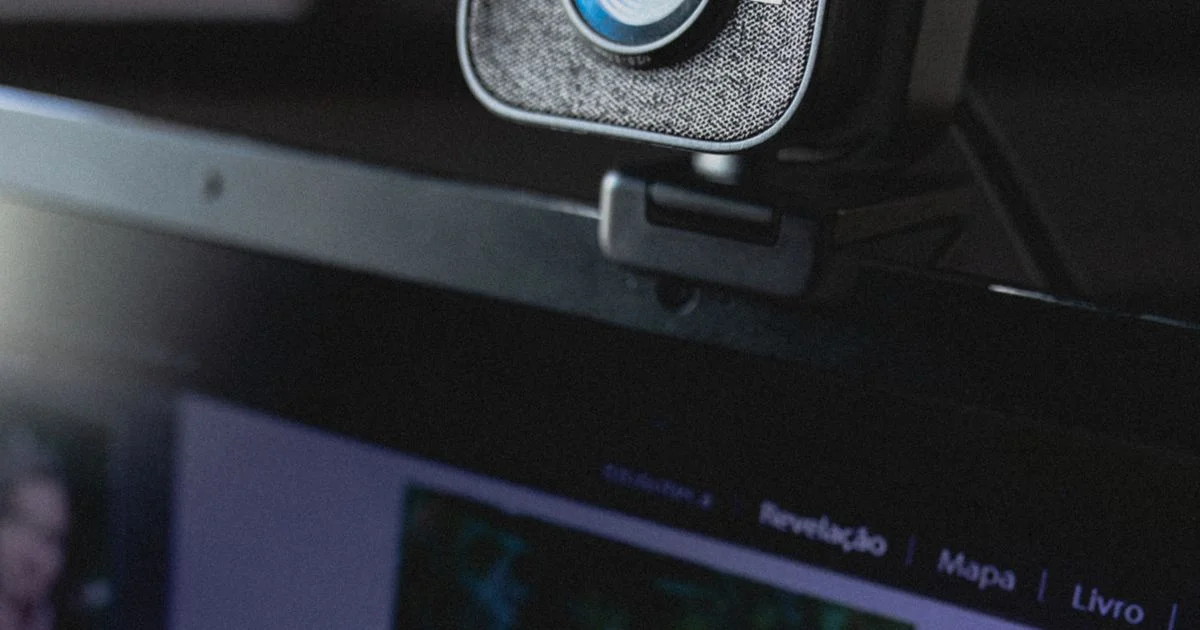
A webcam is one of the few gadgets where the most expensive option can be money thrown away, because the software on the other end decides how much of your picture ever leaves your computer. Choosing the best webcam for streaming and video calls has less to do with resolution than with what your meeting platform will actually transmit, what your upload speed can carry, and how much light is in the room. Get those three things right and a mid-range camera looks better than a premium one used badly.
Key Takeaways
- Video call platforms cap the resolution you send, and on Zoom, Meet and Teams full HD is tied to a paid plan tier rather than to your camera.
- A 4K webcam is the classic example of a feature that costs a lot and changes almost nothing on a normal call, because the picture is downscaled before anyone sees it.
- Lighting moves your image quality more than any number on the box. Entry-level cameras mostly look bad because the room is dark.
- Reliable autofocus, a mount that grips your screen, and a physical privacy shutter are the upgrades that pay off daily.
- If you own a recent phone, using it as a webcam is free and built into Windows 11 and macOS — try that before buying anything.
What the Best Webcam for Streaming and Video Calls Is Actually Worth
The short answer: for meetings, a solid 1080p camera in a well-lit room is the practical ceiling, and money spent past that point buys nothing your colleagues will ever see. For streaming and recording, extra resolution does buy something real — room to crop, zoom and reframe without the picture falling apart — but only if your upload bandwidth and your computer can carry it.
That split matters because the two jobs pull in opposite directions. A meeting is a live, heavily compressed, bandwidth-limited stream that someone watches in a small window. A recording is a file you can edit later. Buying a recording-grade camera for a job that is all meetings is where most of the wasted money in this category goes.
What You Get at Each Price Tier
Webcams sort into three rough bands, and the jump that matters most is the first one.
- Entry-level. Usually 720p or a soft 1080p, fixed focus, a small sensor and a plastic clip. Fine in a bright room facing a window. In dim light the image turns grainy and the camera hunts for exposure. This is a genuine step up from an older laptop’s built-in camera, and for occasional calls it is enough.
- Mid-range. A true 1080p sensor at 30 frames per second, autofocus that settles quickly and quietly, better low-light handling, a sturdier tilting mount and often a privacy shutter. This is the band where the picture stops being something you apologize for, and it is where most people should stop.
- Premium. 4K sensors, 60 frames per second at lower resolutions, wider apertures, adjustable field of view, software framing and background tools. Real benefits for streamers and anyone recording to edit later. On a Zoom call, most of it is switched off by the platform before it reaches anyone.
The Feature That Costs the Most and Changes the Least
4K is the headline number on the box, and on a video call it is close to irrelevant — not because the camera is lying, but because the platform will not carry it. Every major service caps what you send, and the caps are set by your subscription, not your hardware.
On Zoom, sending 720p requires a Pro, Business, Education or Enterprise account. Sending 1080p requires a Pro account with a Zoom Events or Webinars Plus license, or a Business, Education or Enterprise account — plus an i7 quad-core physical CPU or better, virtual backgrounds switched off, and the setting enabled by Zoom Support. Google Meet offers send options of 1080p, 720p and 360p, but 1080p is not supported in Firefox or Safari and requires particular Google Workspace editions or a Google One plan with 2TB or more. Microsoft Teams supports 1080p at up to 30 frames per second in events optimized for large audiences, needs a Teams Enterprise or Premium license, and drops automatically to 720p or 540p when the network cannot sustain it.
Read that list again as a shopper. A 4K camera plugged into a free account gets downscaled twice: once by the platform’s plan tier, and again by whatever bandwidth is left over. The honest version of this affordable streaming webcam comparison is that the resolution you can buy and the resolution you are allowed to send are two different things.
Bandwidth stacks on top. Zoom lists roughly 1.2Mbps up and down for 720p in a one-to-one call and 2.6Mbps up for group calls, and at least 3.8Mbps to send 1080p. Teams events want about 4Mbps per stream. Uploading 1080p webcam video runs around 5Mbps; 4K is closer to 20Mbps — four times the upstream, for a picture the other end will shrink to a tile.

Where Cheap Webcams Genuinely Fall Short
Being honest about value cuts both ways. There are places where the cheapest camera really does cost you, and a cheap webcam 1080p review that only counts pixels will miss all of them.
- Low light. A small sensor with a narrow aperture has to raise gain in a dim room, which is what grain, smeared detail and washed-out color actually are. This is the single biggest real-world gap between tiers.
- Fixed focus. A camera locked to one distance blurs anything held up to it and softens you the moment you lean back. If you demo objects on camera, autofocus is not optional.
- Exposure hunting. Budget cameras react slowly and visibly to changing light, so a passing cloud or a bright window behind you turns your face into a silhouette.
- The mount. A flimsy clip that will not grip a thin laptop lid or a slim monitor means the camera sits at the wrong angle forever, which ruins a good sensor faster than any spec.
- The microphone. Every webcam mic sits farther from your mouth than a headset does, so it picks up more room noise and sounds less focused. Paying extra for a webcam’s “better” mic is usually worse value than buying a cheap headset.
The Free Option Most People Skip
Before spending anything, check the camera already in your pocket. Phone sensors are far larger and better than webcam sensors, and the operating systems now do this natively at no cost.
On Windows 11, the connected camera feature lets an Android phone act as a webcam wirelessly through the Link to Windows app — this is Windows 11 only and was not added to Windows 10. A Pixel 6 or newer can be used as a wired webcam over USB on Windows 10 or 11 by choosing the webcam option from the USB notification. On a Mac, Continuity Camera does the same job with an iPhone. For a webcam for zoom calls used a few times a week, this route is genuinely competitive with a mid-range purchase, and its only real costs are a phone mount and a charging cable.
The catch is convenience. Your phone is unavailable during the call, it needs positioning every time, and battery drain is real on wireless connections. If you are on camera daily, a dedicated webcam that is always pointed at you and always plugged in earns its money on friction alone.
Streaming and Calling Are Different Purchases
The two use cases reward different spending, which is why a single “best” recommendation rarely fits both.
| What you do | Where the money is worth it | Where it is wasted |
|---|---|---|
| Daily work meetings | Good 1080p sensor, autofocus, solid mount, a desk lamp | 4K, 60fps, wide-aperture glass |
| Occasional calls | Nothing — try your phone first | Any dedicated camera at all |
| Live streaming | Low-light performance, consistent frame rate, adjustable field of view | Resolution beyond what your upload can sustain |
| Recording to edit later | Higher resolution for cropping and reframing, manual controls | Built-in microphones, background-blur software |
| Presenting to a room | Wider field of view, sturdy tripod thread | Narrow portrait-style lenses |
One more spending note that applies to every row: field of view is a fit decision, not a quality one. A narrow angle frames head and shoulders cleanly; a wide angle fits several people or a whiteboard but distorts a close-up face and puts your untidy room in shot. Neither is better, and paying extra for an adjustable one only helps if you actually switch between those situations.
Cost Per Hour on Camera
Webcams last years and cost very little per hour of use, which argues for buying one decent camera instead of replacing two bad ones. Someone on video two hours a working day is on camera roughly five hundred hours a year, so even a mid-range model works out to a trivial amount per hour.
The same math argues against the premium tier for meeting use: paying several times more for features the platform disables does not get cheaper per hour. The one upgrade that improves every one of those hours, at any tier, is a light in front of your face rather than behind it.
Frequently Asked Questions
A few questions come up every time someone is deciding whether to upgrade.
Is a 4K webcam worth it for Zoom?
For Zoom specifically, no. Zoom’s own requirements tie 1080p sending to particular paid plans, a fast CPU, disabled virtual backgrounds and enough upstream bandwidth — and 1080p is the ceiling. A 4K sensor can still help if you record locally or crop in streaming software, but nothing above 1080p reaches a Zoom participant.
Will a better webcam fix a dark, grainy picture?
Partly. A larger sensor handles dim rooms better, but no camera invents light. Adding a lamp in front of you, or turning your desk to face a window, usually does more for the image than moving up a tier — and costs less.
Do I need 60 frames per second?
Only for fast motion, which mostly means gaming streams. Thirty frames per second looks smooth for talking heads, and many cameras only reach 60fps by dropping to a lower resolution anyway.
Is the webcam’s built-in microphone good enough?
For casual calls, usually yes. For anything recorded or regularly presented, no — the mic is too far from your mouth and too close to your room. Inexpensive headphones with a boom mic beat almost any webcam microphone.
The Bottom Line
Buy a mid-range 1080p camera with autofocus and a mount that fits your screen, then spend the difference on a lamp. The platform, not the camera, sets the ceiling on how good you look in a meeting, and almost every dollar spent above that ceiling is spent on a picture nobody receives.


