

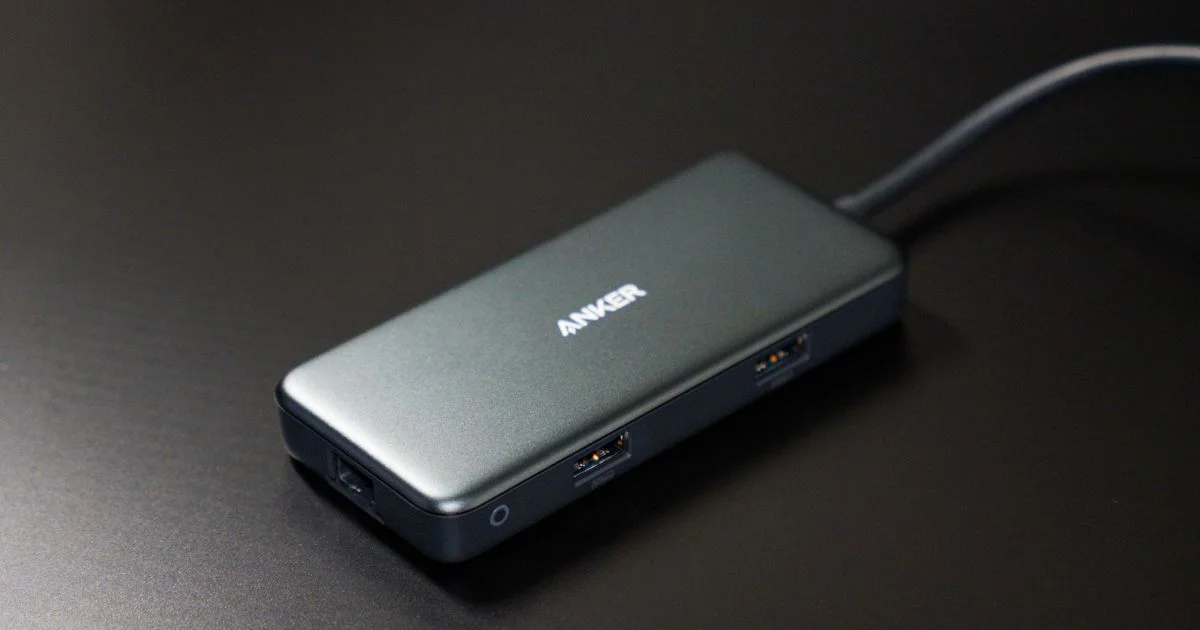
Plugging in three different adapters just to get power, an external monitor, and a flash drive working is the kind of daily friction a good hub is supposed to end. The best USB-C hub for laptop use in 2026 isn’t necessarily the one with the most ports — it’s the one whose ports actually match how you work, at a price that doesn’t waste money on features you’ll never touch.
Key Takeaways
- A basic 4-in-1 hub (USB-C passthrough, one or two USB-A, one video output) covers the way most people actually work.
- Video output specs matter more than port count — HDMI 2.0 vs. 2.1, and single 4K vs. dual 4K, decide what you can actually plug in.
- Power delivery (PD) passthrough is the one premium feature worth paying for if you charge your laptop while the hub is connected.
- An Ethernet jack is genuinely useful for a small group of people (unreliable Wi-Fi, video calls, remote work) and dead weight for everyone else.
- Cheap hubs fail more often from heat and driver issues than from missing features — that’s where the real cost of buying cheap shows up.
Best USB-C Hub for Laptop 2026: The Short Answer
The short answer: pay for exactly two things — the video output you actually use (single 4K vs. dual 4K, HDMI 2.0 vs. 2.1) and power delivery passthrough if you plan on charging through the hub while it’s connected. Everything past that — aluminum housings, a fifth or sixth port, an Ethernet jack you’ll plug in twice a year — is nice to have, but it won’t change how you use your laptop day to day.
What You Get at Each Price Tier
USB-C hubs split into three rough tiers, and the jump between them is about reliability and video capability, not raw port count.
At the entry level, you’re generally getting a compact 4-in-1 or 5-in-1: a USB-C passthrough for charging, one or two USB-A ports, and a single HDMI or VGA output capped at 4K30 or lower. Build quality is plastic, and the internal chipset is usually a generic, unbranded controller — functional, but the first thing to overheat under sustained 4K output.
Mid-range hubs add a second video output (so you can run two external monitors at once), bump HDMI to a cleaner 4K60 signal, and usually include a full-size SD/microSD card reader. The aluminum or aluminum-composite shell here isn’t just cosmetic — it’s doing real work dissipating heat during long video calls or file transfers.
Premium hubs add Ethernet, higher-wattage PD passthrough (65W–100W, enough to fast-charge a larger laptop), and sometimes a second USB-C data port alongside the charging one. The main thing you’re paying for at this tier is a name-brand controller chipset that has been validated against specific laptop models, which is where most of the “it randomly disconnects” complaints at the low end come from.
| Tier | Best for | Where it falls short |
|---|---|---|
| Entry-level (4-in-1) | Occasional use: one monitor, a mouse, a flash drive | Single video output, weaker heat handling, shorter cable life |
| Mid-range (6–7 port) | Daily desk setup with one or two monitors | Ethernet and higher PD wattage usually missing |
| Premium (8+ port, branded chipset) | Multi-monitor setups, video calls over Ethernet, fast charging through the hub | Priced for features many people never use |

USB-C Multiport Adapter Comparison: Features That Cost a Lot and Change Little
Run a real USB-C multiport adapter comparison between a mid-range and premium hub, and the daily experience is closer than the spec sheet suggests. A few features genuinely command a premium without changing much day to day:
- Extra USB-A ports past three. Most people plug in a mouse and occasionally a flash drive — a fourth or fifth port sits empty.
- An all-metal unibody shell. It looks and feels better, and it helps with heat, but a composite shell with a metal top plate manages temperature almost as well.
- 100W PD passthrough when your laptop only charges at 65W or less. The extra headroom does nothing until you own a laptop that can use it.
None of this means premium hubs are a bad buy — it means the premium is paying for headroom, not for something you’ll notice using a laptop normally.
Where a Cheap Hub Genuinely Falls Short
The value angle here cuts both ways. Buying the cheapest hub on the shelf does cost you in a few specific, predictable ways:
- Video output that drops to a lower refresh rate or resolution than advertised once you’re actually running a 4K monitor, especially over HDMI.
- Driver and sleep/wake issues — the hub disconnects and reconnects when the laptop wakes up, which is rare on validated mid-range and premium chipsets.
- Thinner cabling and a shorter strain-relief joint at the USB-C plug, which is usually the first thing to fail on a hub you travel with.
- No power delivery passthrough at all, so you’re back to carrying a separate charging cable anyway.
If you only use a hub occasionally at a desk that never moves, none of this matters much. If you carry it daily or run a permanent multi-monitor setup, these are the failure points that turn a cheap hub into a second purchase within a year.
Docking Station vs. USB-C Hub: Which One You Actually Need
A lot of listings blur the line between a hub and a full docking station for laptop setups, but the distinction matters for your wallet. A hub is passive — it splits your single USB-C port into several, with no independent power supply. A docking station has its own power brick, drives more displays at higher resolution, and is built to stay on a desk permanently rather than travel in a bag.
Three signs you actually need a dock instead of a hub:
- You run two or more external monitors above 1440p at the same time, every day.
- You want a single cable to connect and disconnect your entire desk setup — monitors, Ethernet, speakers, and charging — when you walk in each morning.
- Your laptop’s own ports can’t supply enough power to the hub and your accessories at once, causing random disconnects.
If none of those apply, a hub is the better value — it’s smaller, cheaper, and does everything a light daily setup actually needs.
Best Hub for MacBook: What Changes With Apple’s Silicon
Picking the best hub for MacBook use has one extra wrinkle that Windows laptop owners don’t deal with: Apple’s chip, not the hub, decides how many external displays you can run. On the base M1 and M2 MacBook Air and Pro, you’re limited to one external display no matter how many video ports your hub has. The base M3 can drive a second display, but only with the laptop’s own lid closed. Starting with the base M4 and continuing on M5, Apple removed that restriction — two external displays work with the lid open.
The practical takeaway: if you own an M1, M2, or base M3 Mac and want two independent external monitors while using the built-in screen too, no hub fixes that — you’d need a DisplayLink-based adapter, which uses software compression instead of the chip’s native video output and adds a small amount of lag that’s noticeable in fast motion or gaming.
Frequently Asked Questions
A few questions come up constantly when people are shopping for their first hub.
Do I need Thunderbolt, or is USB-C enough?
For charging, USB-A/data transfer, and single-monitor video, standard USB-C is enough. Thunderbolt matters mainly for driving multiple high-resolution monitors or connecting an external SSD enclosure at its full speed — most people never hit that ceiling.
Will a hub slow down file transfers from a flash drive or SSD?
A well-built hub adds negligible overhead. A cheap one with an outdated USB 2.0-era controller chip inside can bottleneck a fast external SSD noticeably, even though the port itself is labeled USB 3.
Can one hub power my laptop and run a monitor at the same time?
Only if it explicitly lists PD passthrough. Without it, the hub’s USB-C port is data/video only, and you’ll still need your laptop’s own charger plugged in separately.
Does port count matter for gaming or video editing?
Less than video bandwidth does. A hub capped at HDMI 2.0 limits you to 4K at 30Hz, which is fine for a spreadsheet and rough for a game or a scrubbing timeline. Check the HDMI version, not just the resolution number, before buying.
Conclusion
The best USB-C hub for laptop use isn’t the one with the longest port list — it’s the cheapest one that still covers the video output and charging you actually rely on every day. Buy for your actual desk setup, not for the setup you might build someday.


3 Comments
Comments are closed.