

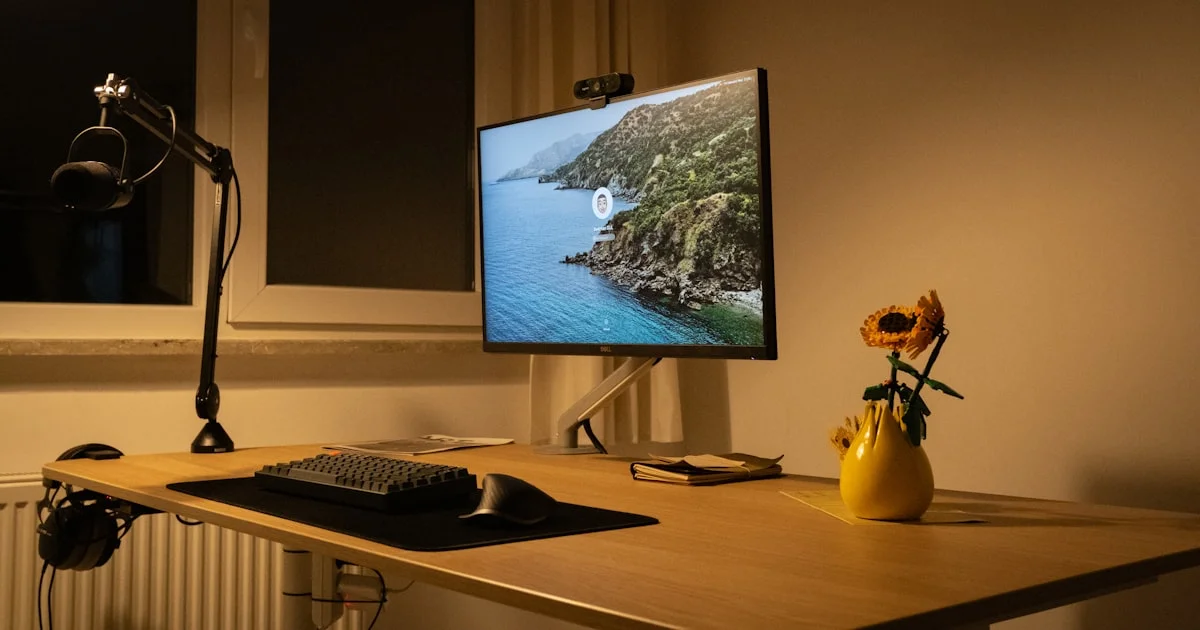
If you spend eight hours a day staring at code, your display is doing more work than almost any other piece of hardware on your desk. The best monitor for programming and coding isn’t the one with the flashiest spec sheet — it’s the one that keeps text crisp, keeps your eyes comfortable, and gives you enough room to see your editor, terminal, and browser at once. This guide breaks down exactly what to look for, in plain language, so you don’t end up with a monitor built for gaming when what you actually needed was a monitor built for reading.
Key Takeaways
- Pixel density (PPI) matters more than refresh rate when your screen is mostly full of text.
- A 27-inch monitor running 1440p or 4K resolution is the sweet spot for most developers.
- IPS panels give better color accuracy and viewing angles than TN panels, at a reasonable price.
- An adjustable stand that tilts, swivels, and rotates into portrait mode reduces neck and eye strain more than any single spec.
- Ultrawide monitors can replace a second display for people who multitask across editor, terminal, and browser windows.
What Makes the Best Monitor for Programming and Coding
The short answer: the best monitor for programming and coding is a 27-inch or larger IPS display running at 1440p or 4K resolution, mounted on a stand that adjusts for height, tilt, and portrait rotation. Code is text, and text looks sharper as pixel density goes up. A 27-inch 4K panel packs roughly 163 pixels per inch, compared with about 109 PPI on a 27-inch 1440p screen and even less on a 1080p panel of the same size. That difference shows up immediately in how easy it is to read small font sizes without squinting or scaling everything up until you lose screen real estate.
Refresh rate, by contrast, barely matters for a static block of code. It only becomes noticeable when something on screen is moving — scrolling fast through a long file, or dragging a window across the desktop. That’s why a monitor built for competitive gaming isn’t automatically a better choice for writing software, even though it might cost more.
Coding Monitor Recommendations by Budget and Use Case
Most coding monitor recommendations review roundups agree on a similar pattern once you strip out brand names: your ideal pick depends on your desk space and budget, not on chasing the newest model number.
Entry-Level Setups
A single 24-inch 1080p or 27-inch 1440p IPS monitor covers the basics well. It’s an easy upgrade from a laptop screen and works fine for most web, app, or scripting work.
Mid-Range Developer Setups
A 27-inch to 32-inch 1440p or 4K monitor with a height-adjustable stand is where most professional developers land. It has enough resolution for sharp text and enough size for a code editor and a browser side by side.
Premium Multi-Monitor and Ultrawide Rigs
Ultrawide (34 to 40 inches) or dual 4K setups suit people juggling multiple codebases, virtual machines, or design tools at once. They cost more, but they remove the need to constantly alt-tab between windows.
Panel Type Comparison: Finding the Best Monitor for Developers
Panel technology is one of the biggest factors in any best monitor for developers comparison, and it’s often overlooked in favor of resolution alone.
- IPS panels offer accurate colors, wide viewing angles, and a fair price — the safest default for programming.
- OLED panels deliver perfect blacks and excellent contrast, which some developers like for reduced eye strain in dim rooms, but they cost more and carry a small risk of burn-in from static UI elements like a taskbar.
- TN panels are the cheapest option and the fastest to respond, but their washed-out colors and narrow viewing angles make small text harder to read from an angle — a poor trade for coding work.
Matte or low-glare finishes also help here, since they cut down on reflections from windows or overhead lighting during long sessions.

Refresh Rate and Response Time: Do Coders Need Gaming Specs?
A 60Hz panel is genuinely fine for programming. Anything from 60Hz to 100Hz will feel smooth for scrolling through files and switching windows. Higher refresh rates in the 120Hz to 165Hz range are nice to have if you also game or edit video on the same machine, but they add cost without adding much benefit to a text-heavy workflow. Response time follows the same logic: a 5ms panel is perfectly usable for coding, while the 1ms panels marketed to gamers solve a problem developers don’t really have.
Programmer Monitor Setups Ranked: Single, Dual, or Ultrawide
Every programmer monitor setup ranked by working developers tends to fall into one of three categories, each with a clear trade-off.
- Single large monitor: simplest to set up and cheapest, but requires more window-snapping to see multiple apps at once.
- Dual monitors: excellent for keeping a browser or documentation open next to your editor, though the bezel between screens can feel like a visual seam.
- Ultrawide or super-ultrawide: gives the horizontal space of two monitors with no gap in the middle, and many models support split-screen modes that mimic a dual-monitor layout on one panel.
Portrait mode is worth a mention on its own: rotating a secondary monitor 90 degrees shows far more lines of code, logs, or documentation at once without scrolling, which many developers find more useful than a second landscape display.
Ergonomics and Eye Comfort for Long Coding Sessions
The physical setup of your monitor affects your body as much as the panel itself affects your eyes. A few adjustments make a real difference over an eight-hour day:
- Set the top of the screen at or slightly below eye level, so you’re looking slightly down rather than craning your neck up.
- Position the monitor about an arm’s length away — roughly 20 to 28 inches from your eyes.
- Turn on any flicker-free or low-blue-light mode the monitor offers, especially for evening work.
- Match your monitor’s brightness to the room around you instead of running it at maximum all day.
- Take a short break every 20 to 30 minutes and look at something farther away to rest your focus.
A monitor arm or stand with tilt, height, and swivel adjustment makes all five of these easier to get right and keep consistent.
Comparison Table: Monitor Types for Programmers
| Setup Type | Best For | Trade-Off |
|---|---|---|
| Single 27″ 1440p IPS | Most developers, general coding | Limited multitasking space |
| Dual Monitors | Side-by-side editor and browser or docs | Visible bezel gap, more desk space needed |
| Ultrawide (34″-40″) | Multitasking without a bezel gap | Higher price, needs more GPU power to drive |
| 4K 32″+ | Sharpest text, design or video work on the side | May need display scaling for comfortable text size |
| Portrait Secondary Display | Reading long files, logs, or documentation | Not ideal as a primary display |
Frequently Asked Questions
Here are quick answers to the questions developers ask most often when shopping for a new display.
Is a curved monitor good for programming?
Curved monitors can help on ultrawide sizes by keeping the edges of the screen a more consistent distance from your eyes. On smaller screens, the curve makes little practical difference for text-based work.
Do I need a 4K monitor to code comfortably?
No. A well-sized 1440p IPS monitor is sharp enough for most people. 4K helps most at 32 inches and larger, where the extra pixel density keeps text from looking soft.
Is a TV a good substitute for a monitor?
Generally not for coding. TVs are designed to be viewed from farther away and often use a subpixel layout or scaling that makes small text look blurry up close.
How much should I spend on a monitor for coding?
You don’t need a premium panel to code well. A mid-range 27-inch 1440p IPS monitor from a reputable brand covers the vast majority of programming work; save the premium budget for an ultrawide or 4K panel only if you have a specific multitasking need.
Final Thoughts on Choosing a Coding Monitor
The right display comes down to sharp text, a comfortable viewing distance, and enough screen space to avoid constant window-switching. Prioritize resolution and an adjustable stand over refresh rate, and you’ll end up with a setup that holds up for years of daily use.


6 Comments
Comments are closed.